
How to Plan Your Subscription Order
How to Plan Your Subscription Order
A step-by-step guide for building, updating, and scheduling your Vimergy subscription
Whether you are brand new to subscriptions or just want a refresher, this guide walks you through everything — from logging in to adding products, choosing your delivery date, and making sure your order is exactly what you want before it processes.
Before You Start: What You'll Need
- A Vimergy account (the same email you used when you first placed a subscription order)
- A few minutes to review and plan your order
- Your next scheduled charge date handy (you can find this once you log in)
Step 1 — Log In to Your Account
- Go to vimergy.com and click the person icon at the top right of the page.

- Select Account from the dropdown menu.
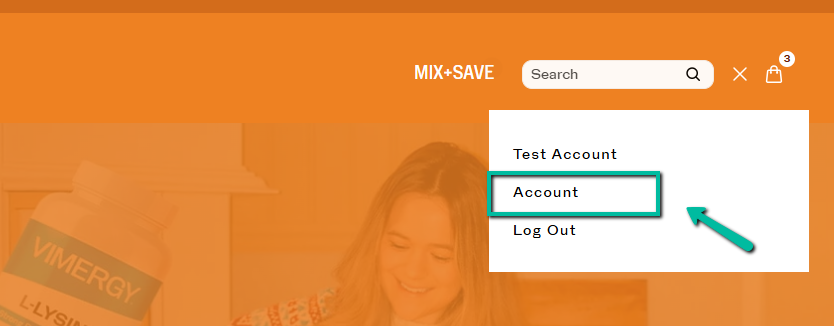
- Once inside your account, click Subscriptions to see all of your active subscription items and upcoming orders.
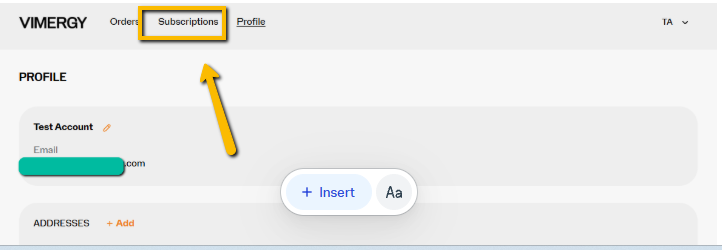
Tip: You can also access your subscription directly by clicking the Manage Subscriptions link inside your reminder email, which arrives 4 days before your next order is scheduled to process.
Step 2 — Find Your Upcoming Order
- Inside your Subscriptions dashboard, click View Upcoming Orders.
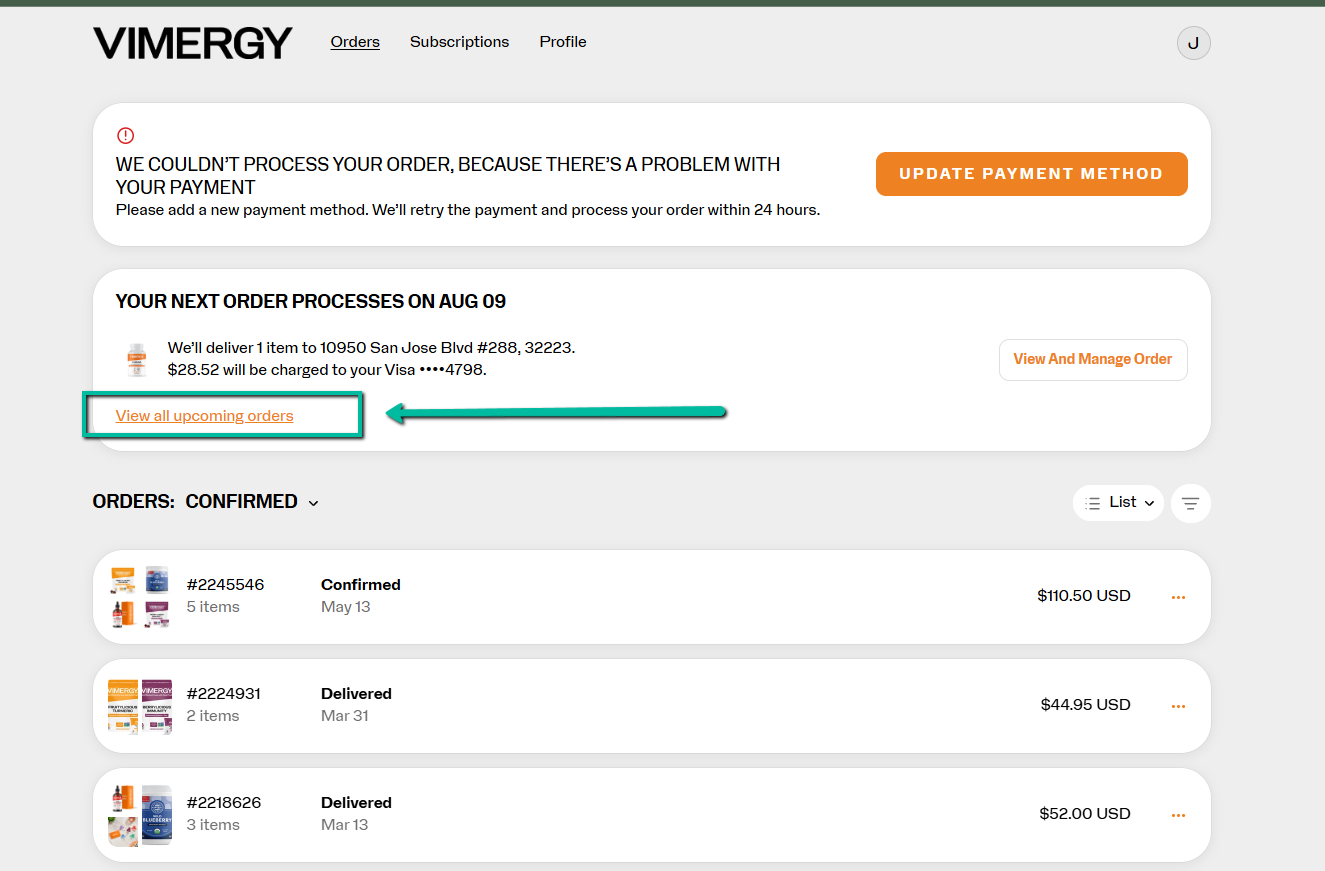
- You will see your next scheduled order listed, including:
- The products currently in the order
- The scheduled charge date
- The shipping address on file
📸
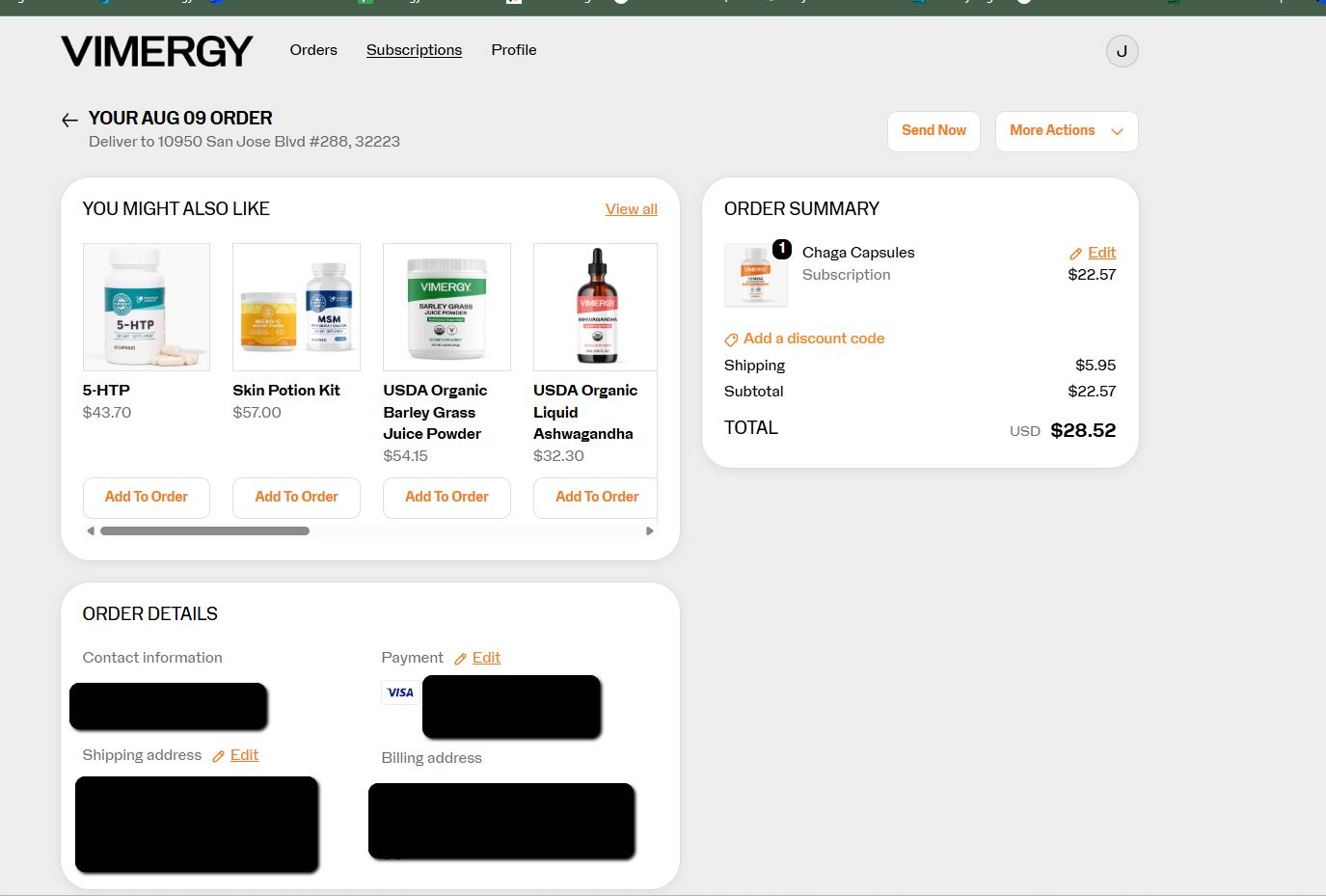
This is your planning view. From here you can add products, change the date, skip, or process the order early — all before it charges.
Step 3 — Add Products to Your Order
You can add extra items to your upcoming order — either as a one-time addition (just for this order) or as a new recurring subscription item (added to every future order).
- Inside your upcoming order, click View and Manage Order.
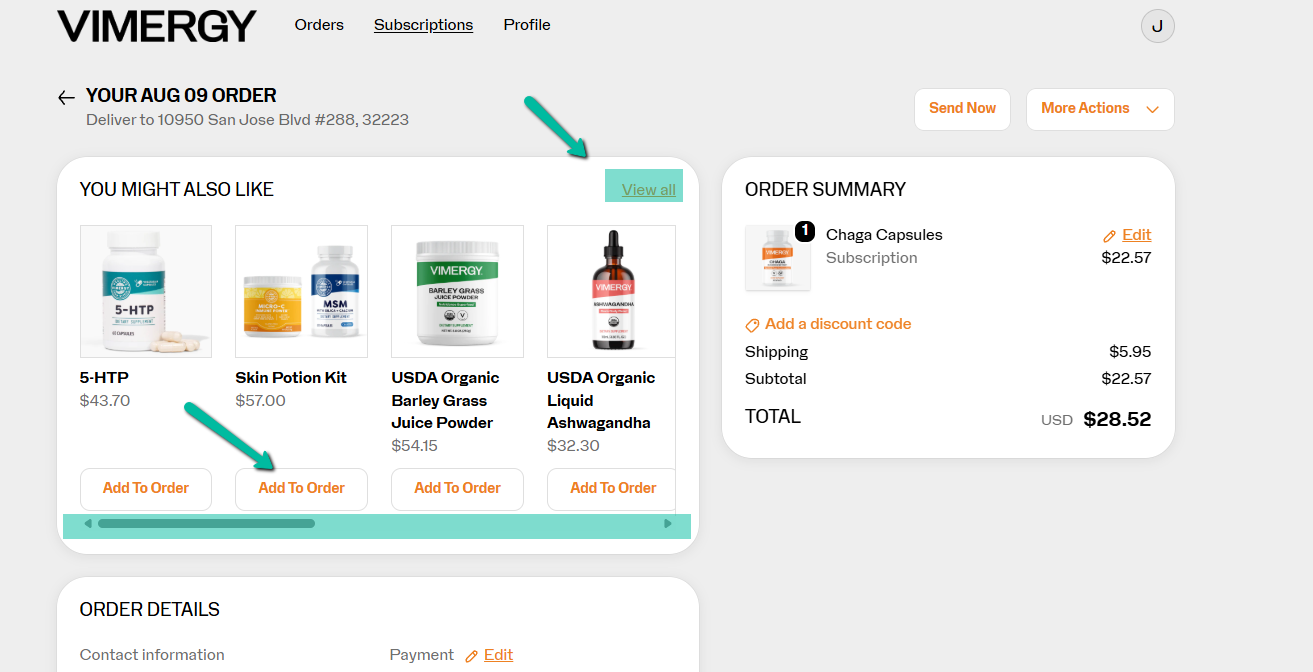
- Click Add to Order.
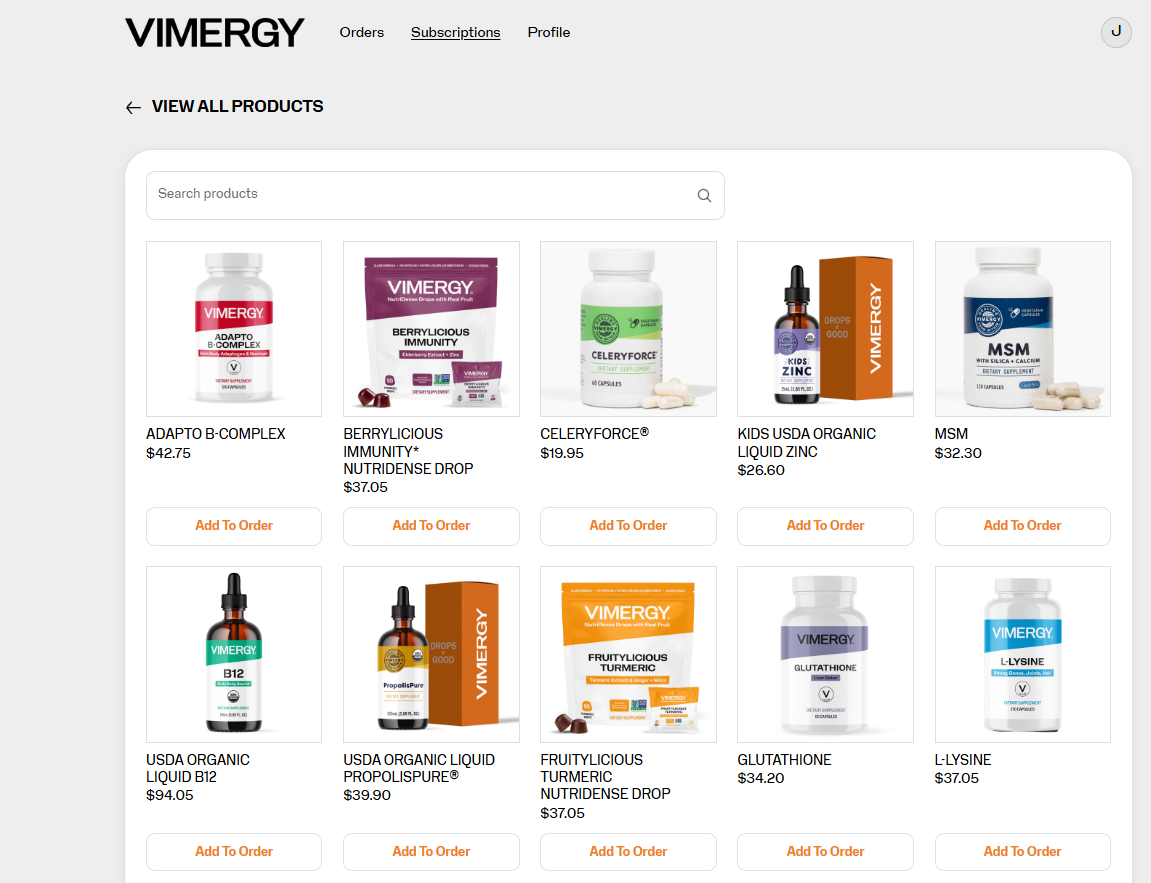
- Browse the product list and click + Add on the item you want to include.
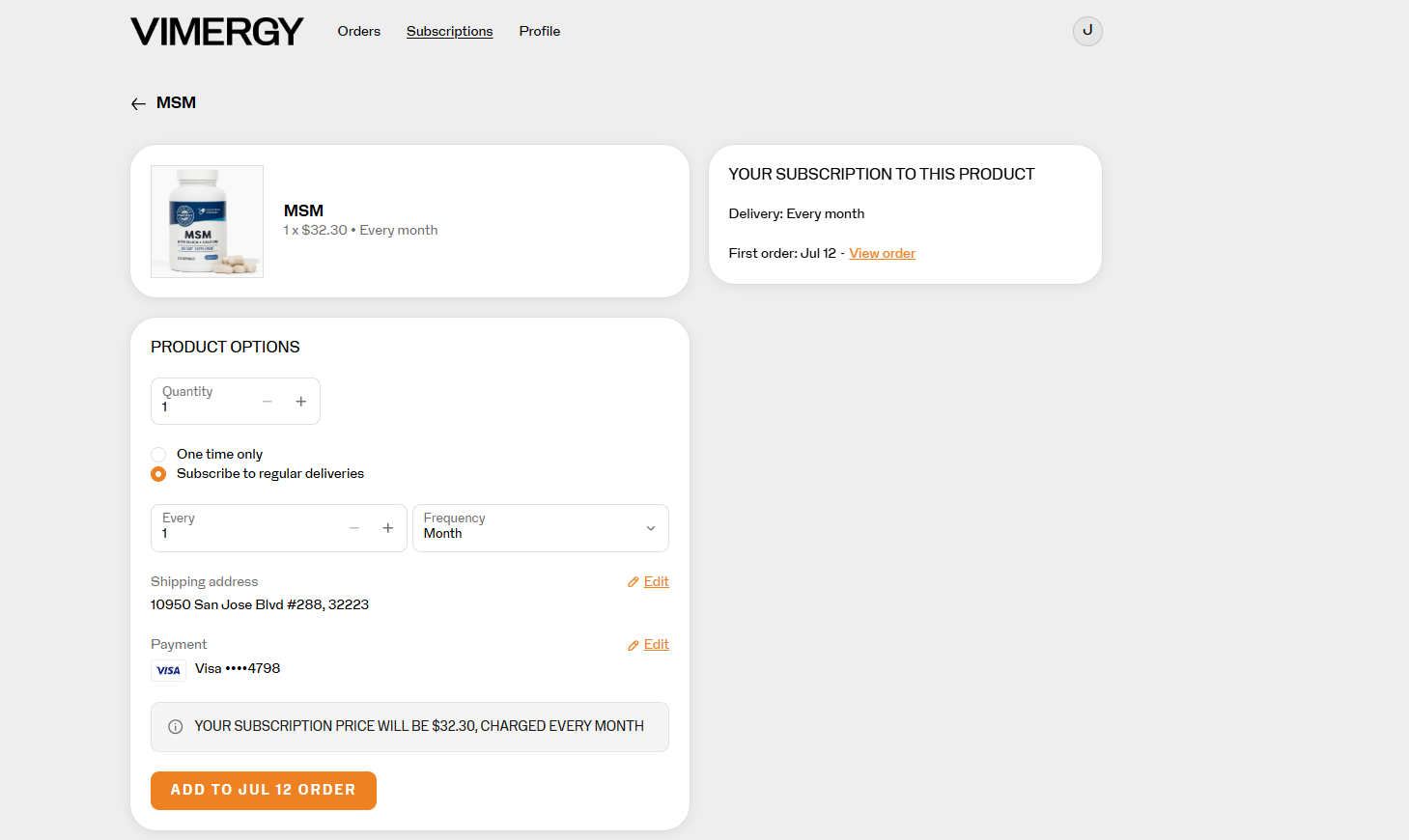
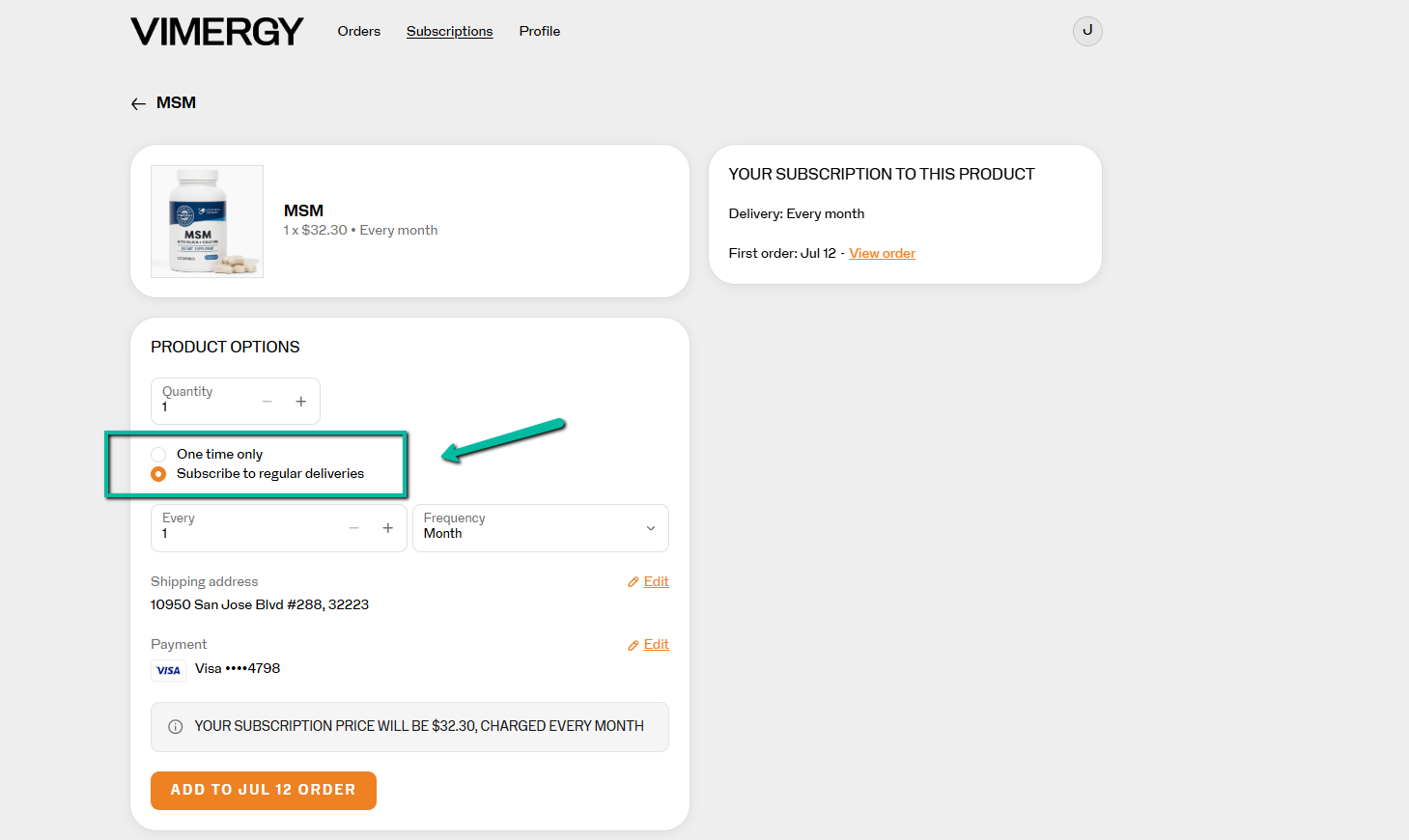
- A selection panel will appear. Choose your delivery preference:
- One time only — adds the item to this order only. It will not repeat.
- Subscribe (default) — adds the item as a recurring subscription. It will appear in every future order.
- Click Add to Order to confirm.
📸 [Screenshot: Confirmation of item added to order, showing it listed in the order summary]
Always double-check your selection. Your order summary will show each item labeled as either Subscription or One-time so you can review before the order processes.
Step 4 — Remove or Adjust Items
To change the quantity of an item:
- Inside your upcoming order, find the product you want to adjust. Click Edit.
- Use the quantity selector to increase or decrease the amount.
- Click Save to confirm.
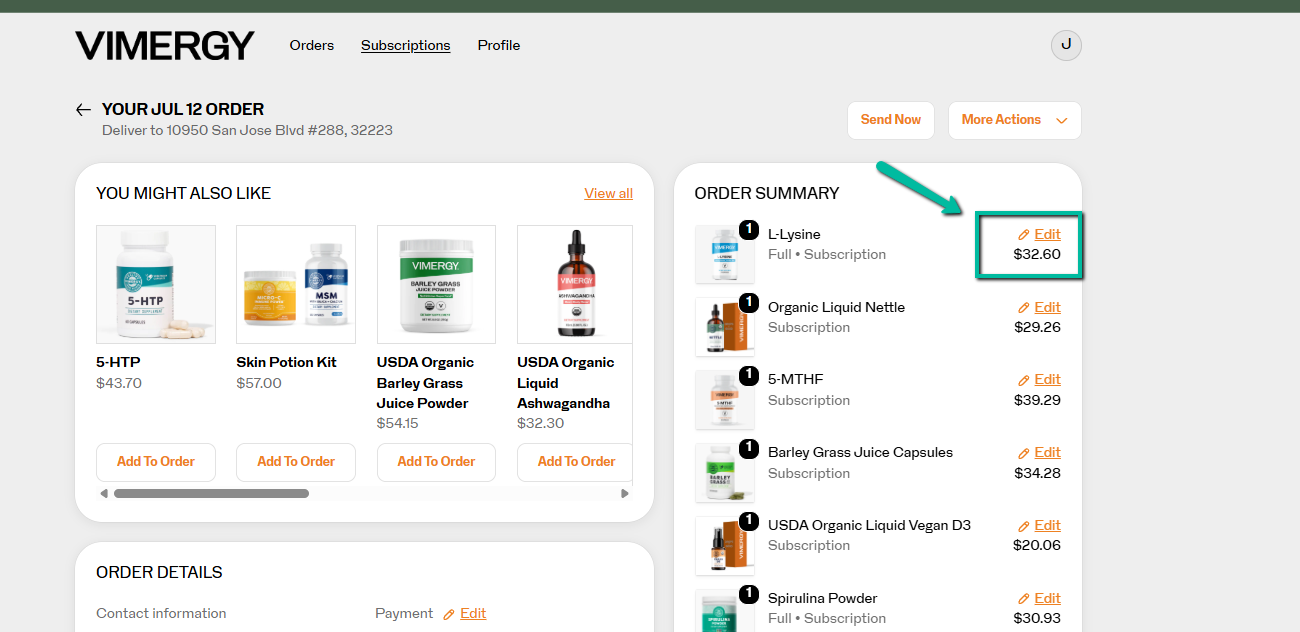
To remove an item from a single order:
- Go to the Subscriptions tab and find the individual subscription item you want to remove.
- Click Manage this subscription.
-
Use the remove or cancel option for that specific product.
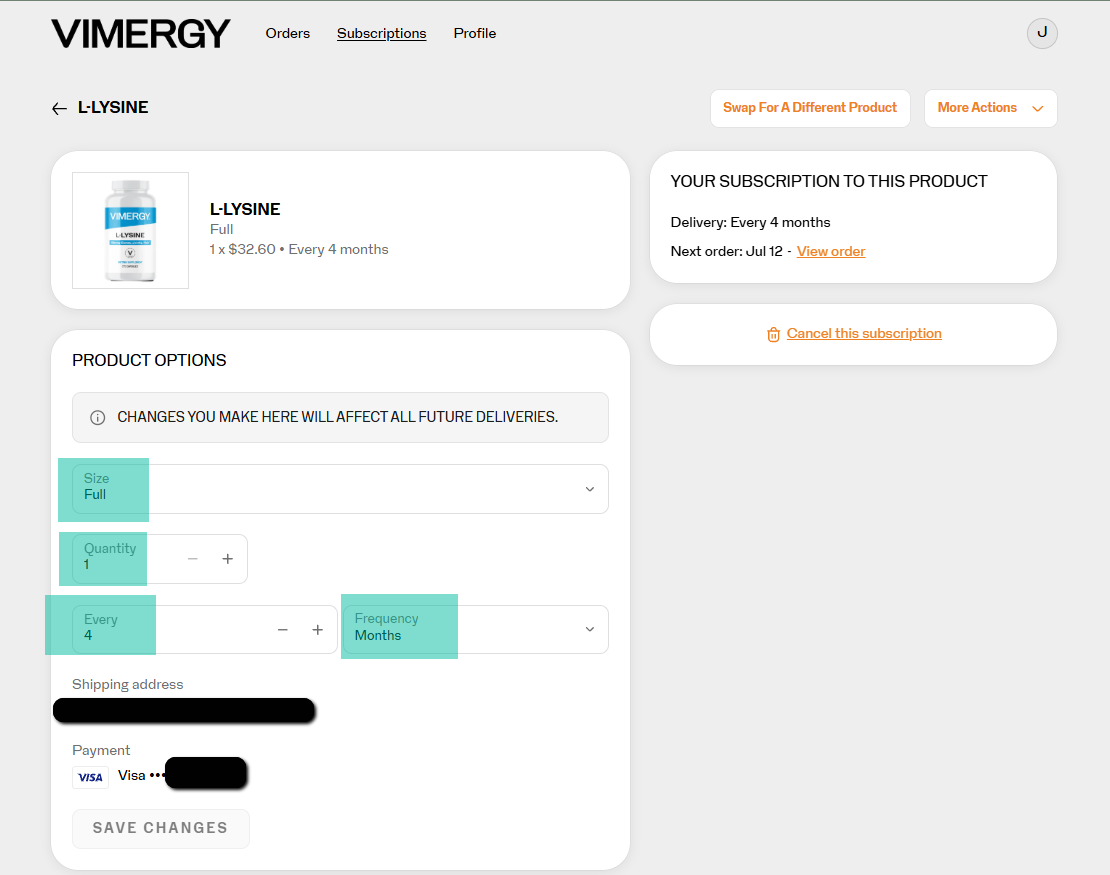
Note: Removing an item from your upcoming order is done at the subscription level, not the order level. Each product subscription is managed individually.
Step 5 — Choose Your Delivery Date
You are in full control of when your order processes. You can reschedule to any date that works for you.
- Inside your upcoming order, click More Actions.
- Select Reschedule.
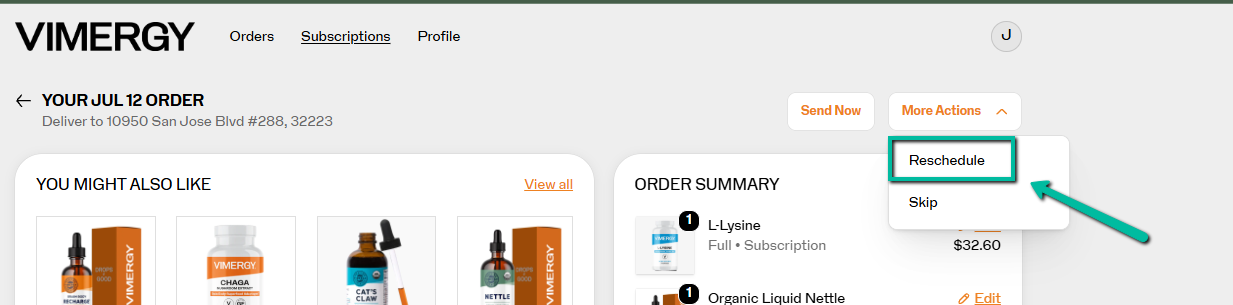
- You will see two options:
- Delay by weeks — choose how many weeks to push the order forward.
- Pick a date — select a specific date from the calendar.
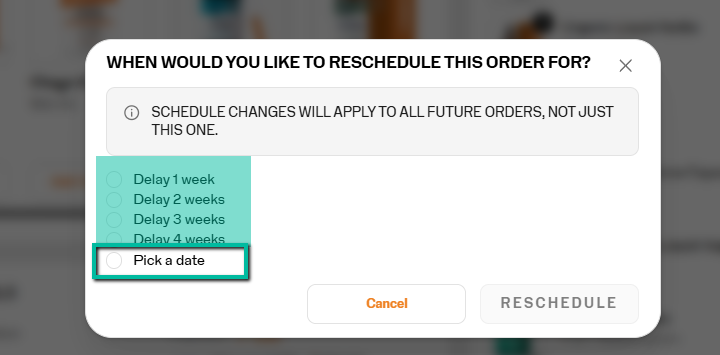
- Use the calendar arrows to navigate to the month you want, then click your preferred date.
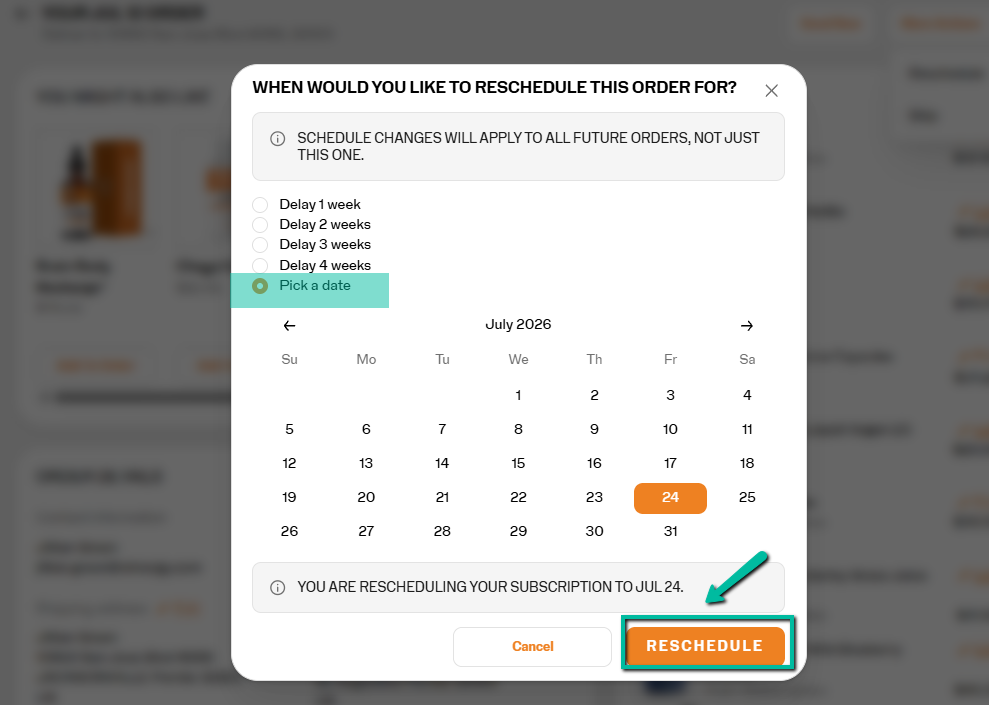
- Click Reschedule to confirm. Your new charge date will update immediately.
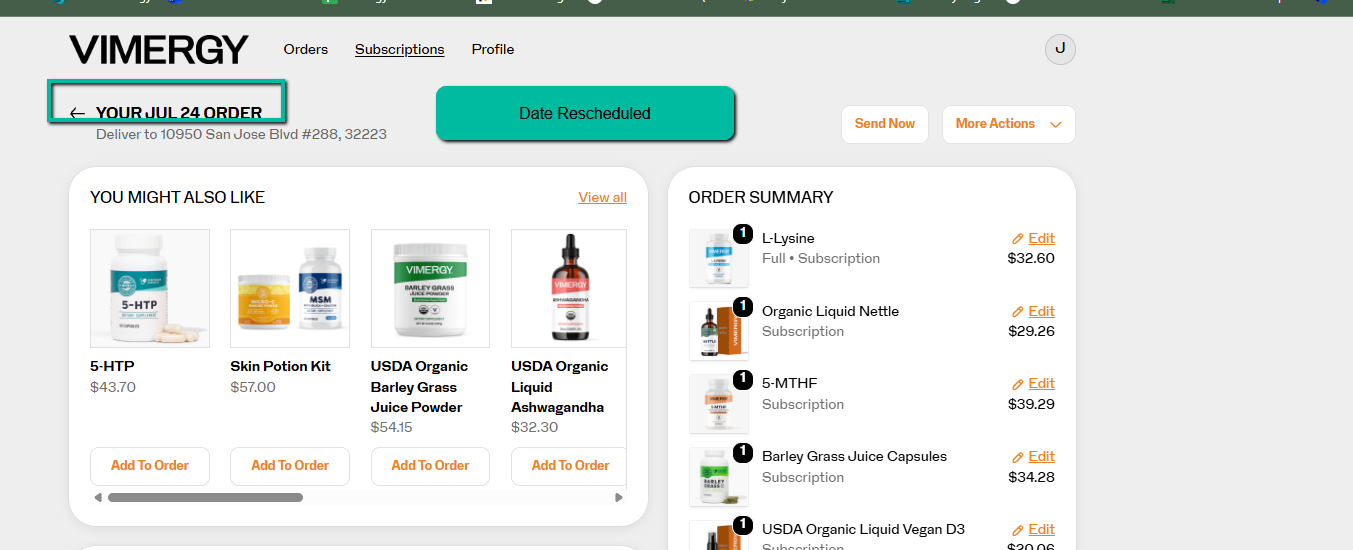
Important: Please make any date changes the day before your subscription is scheduled to process. Changes cannot be made on the day of processing.
Step 6 — Process Your Order Early (Optional)
If you would like to receive your order sooner than the scheduled date, you can send it now.
- Inside your upcoming order, click Send Now.
- Confirm by selecting Send this order now.
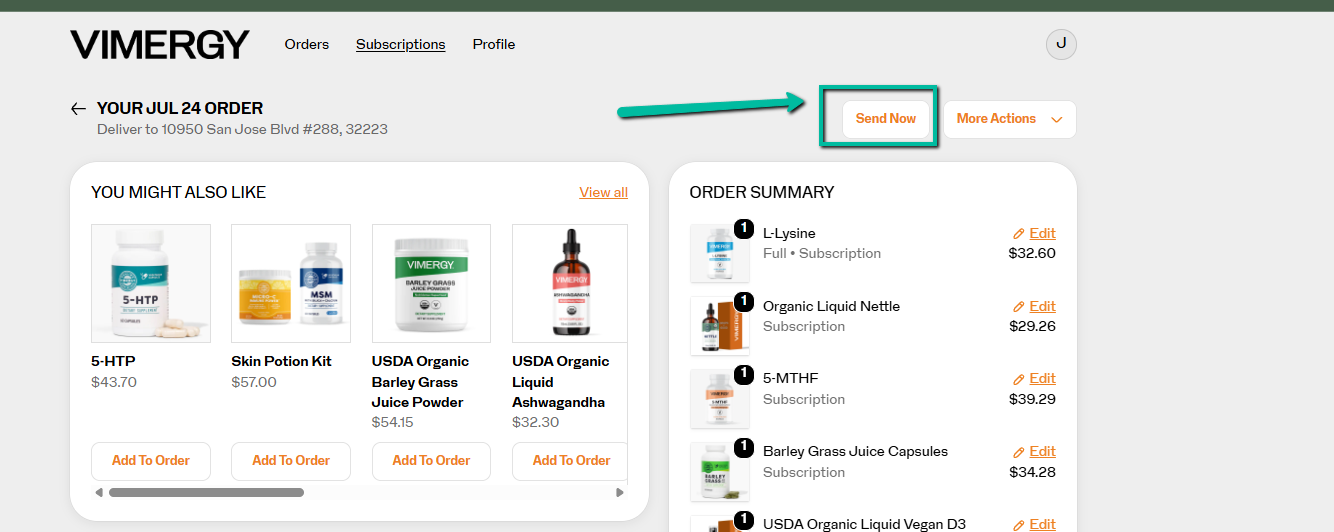
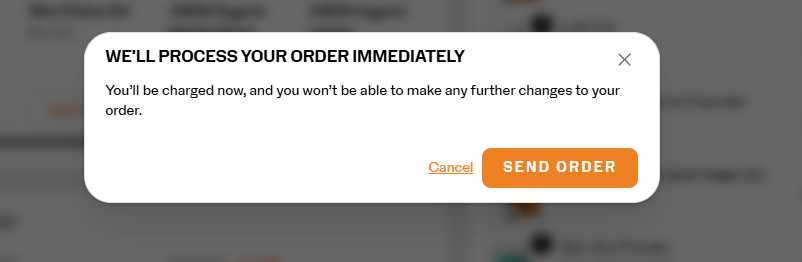
Note: After an early order is processed, your next charge date will automatically recalculate based on your subscription frequency. For example, if your subscription runs every 30 days and you send it early today, your next order will be scheduled 30 days from today.
Step 7 — Skip an Order (Optional)
If you do not need your order this cycle and would like to skip it entirely:
- Inside your upcoming order, click More Actions, then select Skip.
- Click Yes, skip this order to confirm.
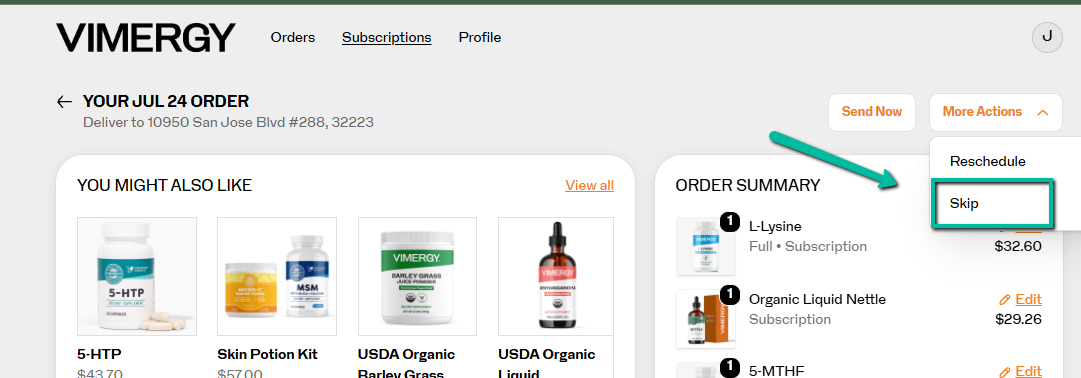
Your next order will automatically be rescheduled based on your subscription frequency.
Tip: You can also skip individual products rather than the whole order. Go to the Subscriptions tab, find the product, click Manage this subscription, and select Skip.
Step 8 — Review Everything Before Your Order Processes
Before your charge date, take a moment to confirm:
- ✅ All the products you want are in the order
- ✅ One-time items are marked as One-time, not Subscription
- ✅ The scheduled date is correct for your needs
- ✅ Your shipping address is up to date
- ✅ Your payment method is current
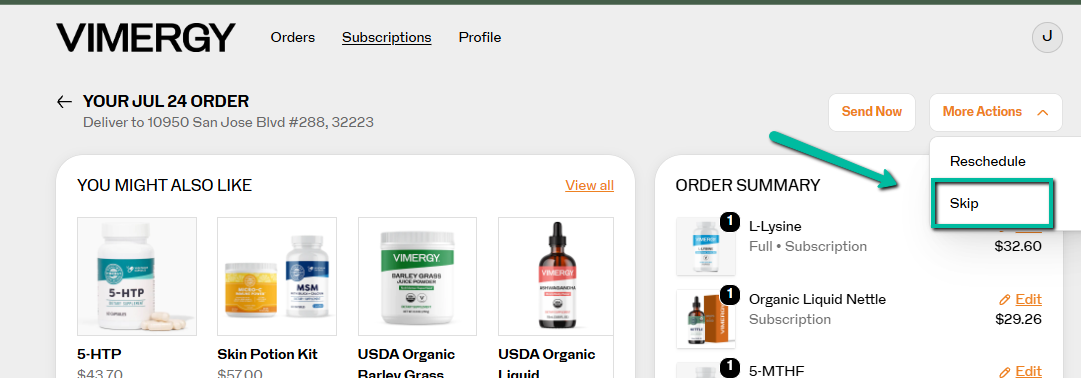
You will receive a reminder email 4 days before your order processes. This is a great time to log in and make any final adjustments.
Quick Reference: What Can I Change and When?
| Action | How | Deadline |
|---|---|---|
| Add a product (one-time) | View and Manage Order → Add to Order → One time only | Day before processing |
| Add a product (recurring) | View and Manage Order → Add to Order → Subscribe | Day before processing |
| Change quantity | View and Manage Order → Quantity selector | Day before processing |
| Reschedule order date | Upcoming Order → More Actions → Reschedule | Day before processing |
| Skip this order | Upcoming Order → More Actions → Skip | Day before processing |
| Send order early | Upcoming Order → Send Now | Anytime |
| Update payment method | Subscriptions → Profile → Add/Edit Payment Method | Day before processing |
| Update shipping address | Subscriptions → Profile → Address | Day before processing |
Need Help?
Customer Service: Monday–Friday, 9 AM–5 PM EST — we are happy to walk you through any of these steps!
AI Attendant: Available 24/7 to answer questions and pass requests along to our team. Please keep in mind that for changes needed before your next processing date, it is best to contact Customer Service directly during business hours to make sure edits are completed in time.